
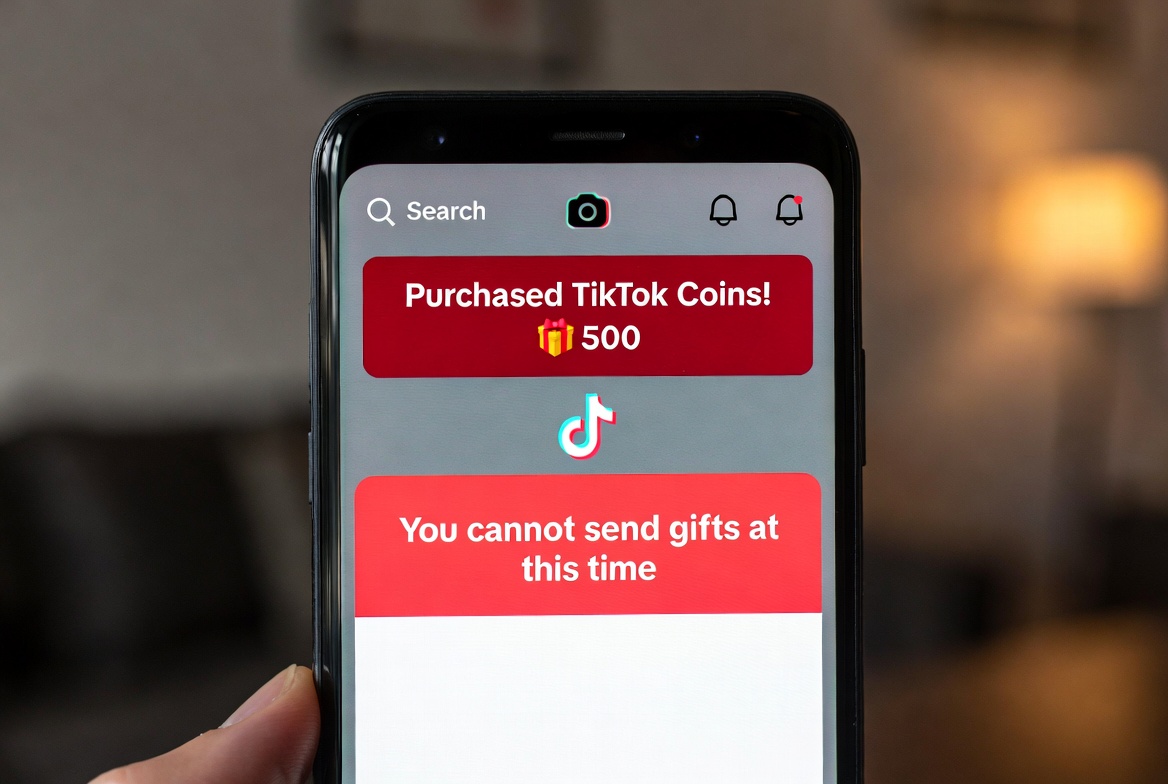
How to Fix “Unable to Send Gifts” on TikTok After Purchase (2026 Updated)
Discovering that you are unable to send gifts on TikTok after purchasing coins is a common and deeply frustrating technical issue. This problem, persisting into 2026, can stem from various causes ranging from app glitches and payment verification delays to account restrictions and regional policy violations. When your purchased TikTok coins do not translate into the ability to support creators, it disrupts the core interactive experience of the platform. This comprehensive guide will methodically walk you through the proven troubleshooting steps for 2026, helping you resolve this TikTok gift sending error quickly. We will cover everything from checking your internet connection and updating the app to understanding TikTok’s community guidelines and navigating the official support ticket system. The goal is not only to restore your gifting function but also to ensure your future transactions are smooth, protecting your investment in the platform’s economy.
Why Can’t I Send Gifts on TikTok After Buying Coins? Top 2026 Causes
Identifying the root cause is the first step toward a solution. The issue of being unable to send gifts often falls into a few key categories. First, technical issues like a poor Wi-Fi or mobile data connection can prevent the app from syncing your coin balance or processing the gift transaction. An outdated version of the TikTok app is another frequent culprit, as older versions may contain bugs that disrupt in-app purchases and gifting functions. Second, account-related problems are common; this includes a temporary account restriction or shadowban due to perceived violations of TikTok’s Terms of Service, which can limit interactive features. Third, financial and verification issues can arise, such as a pending bank authorization on your coin purchase or a problem with your Google Play Store or Apple App Store billing account. Finally, you may have inadvertently hit a daily gifting limit or are trying to send a gift in a live stream or to a creator whose account settings or region do not allow receipt of gifts.
| Potential Cause | Symptoms | Quick Check |
|---|---|---|
| App Cache/Data Corruption | Gifts button unresponsive, coin balance incorrect. | Clear TikTok app cache (Settings > Apps > TikTok > Storage). |
| Outdated App Version | Features missing, general app instability. | Check for updates in your device’s app store. |
| Account Restriction | Can view videos but cannot comment, follow, or gift. | Check for official notifications from TikTok in your inbox. |
| Payment Pending | Coin balance hasn’t updated despite charge on card. | Wait 24 hours; check with your bank/App Store. |
| Network Issues | Videos not loading, uploads failing. | Test connection by browsing other apps or websites. |

Step-by-Step Troubleshooting: How to Regain Your Gifting Ability
Follow these steps in order to diagnose and fix the TikTok gift sending error.
-
Check Your Internet Connection: Switch between Wi-Fi and mobile data. A weak or unstable connection is the simplest and most common fix.
-
Force Close and Restart the TikTok App: Completely close the app from your device’s multitasking menu and reopen it. This refreshes the app’s session.
-
Update the TikTok App: Go to the Apple App Store or Google Play Store, search for TikTok, and tap “Update” if available. Running the latest version is critical.
-
Clear the App Cache (Android): Navigate to your device Settings > Apps > TikTok > Storage > “Clear Cache.” This removes temporary data that may be corrupted.
-
Check Your TikTok Coin Balance: Go to your profile > menu (≡) > Balance. Ensure the coins from your purchase are actually reflected. If not, proceed.
-
Verify Your Payment Method: Ensure the card or payment method used is still valid. Check your App Store or Google Play purchase history to confirm the transaction is complete and not pending.
-
Check for Account Violations: Review your TikTok inbox for any messages from TikTok about community guidelines violations. Even a temporary restriction can disable gifting.
-
Restart Your Device: A full device reboot can resolve underlying system glitches affecting app performance.
-
Log Out and Log Back In: Go to your profile > menu (≡) > Settings and Privacy > Log out. Wait a minute, then log back in. This resets your connection to TikTok’s servers.
-
Contact TikTok Support: If all else fails, you must file a report. Go to your profile > menu (≡) > Settings and Privacy > Report a problem. Describe the issue in detail: “Purchased coins but unable to send gifts,” include the date of purchase, receipt/screenshot, and steps you’ve already tried.
Important TikTok Policies That Can Block Gifting in 2026
Sometimes, the inability to gift is not a bug but a policy enforcement. TikTok has strict rules to ensure safety and compliance. Age restrictions are primary; if your account is set to under 18 or you are trying to gift in a live stream hosted by a minor, the feature will be blocked. Furthermore, regional laws vary; some countries or states have regulations around virtual gifts and monetary transfers that may limit functionality. If your account has been flagged for suspicious activity—such as rapid, high-volume gifting—it may be temporarily limited to prevent fraud. Understanding these platform rules is essential to avoid future disruptions. Always ensure your account information is accurate and that you are engaging with content and creators in accordance with TikTok’s published Terms of Service.
Frequently Asked Questions (FAQ)
Q: I was charged but my TikTok coin balance didn’t increase. What do I do?
A: First, wait up to 24 hours for the transaction to fully process. If the coins still don’t appear, gather your payment receipt (from Apple/Google) and contact TikTok Support directly through the app’s “Report a problem” feature. Do not issue a chargeback with your bank first, as this may lead to your account being banned.
Q: Can my account be banned for sending too many gifts?
A: While gifting is encouraged, extremely rapid, automated, or fraudulent-looking gifting patterns can trigger TikTok’s security systems, leading to a temporary or permanent account restriction. Always gift normally and within reasonable frequency.
Q: Why can’t I send gifts in one specific live stream?
A: The creator may have disabled the gift function in their live stream settings. Alternatively, their account or the content of the stream might have triggered a violation, leading to temporary feature disabling for that broadcast.
Q: How long does it take for TikTok support to respond?
A: Response times vary, but you can typically expect an initial reply within 24 to 72 hours. Providing clear details, transaction IDs, and screenshots will expedite the process.
Q: Is there a daily limit on how many gifts I can send?
A: TikTok does not publicly disclose specific limits, but to prevent fraud and financial abuse, there are almost certainly daily spending and gifting limits in place, which may vary by account age, region, and verification status.
Securing Your TikTok Experience
Resolving the “unable to send gifts” issue is often straightforward, but it highlights the importance of maintaining a stable app, a secure connection, and an account in good standing. For 2026, ensure you keep your app updated, use secure payment methods, and familiarize yourself with TikTok’s evolving digital gifting policies. If problems persist, methodical troubleshooting and clear communication with TikTok’s help center are your best tools. By following this guide, you can restore your ability to participate fully in the community and support your favorite creators without interruption.
Keywords: unable to send gifts on TikTok, TikTok coins not working, purchased coins but can’t gift, TikTok gift error 2026, how to fix TikTok gifting, TikTok support coin issue, TikTok live gifts not sending, coin balance not updating
Disclaimer: The information provided in this article is for general guidance and informational purposes only. The troubleshooting steps are based on common solutions and publicly available app functions as of 2026. We are not affiliated with TikTok, ByteDance, Apple, or Google. For account-specific issues, direct transactions, or policy interpretations, you must always contact official TikTok Support through the in-app reporting feature. User experience may vary based on device, region, and account status.